Getting Started with Guernsey Payroll
Your complete guide from first login to running your first payroll
Login & Security Setup
Welcome to Guernsey Payroll! Let's get you started with accessing your account and setting up essential security features.
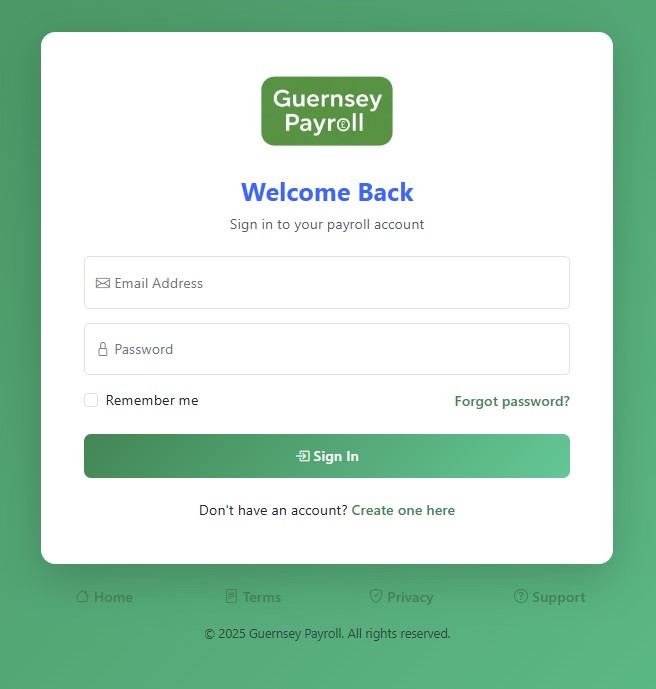
Initial Login
Access Your Account
After you verify the email address used at registration, sign in with that email address and the password you chose. The verification message is separate from the getting-started email.
Your password
Use the password you set when you registered. You can change it later from your account. A strong password has at least 8 characters, with uppercase, lowercase, numbers and a symbol.
Multi-Factor Authentication (Recommended)
For enhanced security, we strongly recommend enabling Multi-Factor Authentication (MFA). This adds an extra layer of protection to your payroll data.
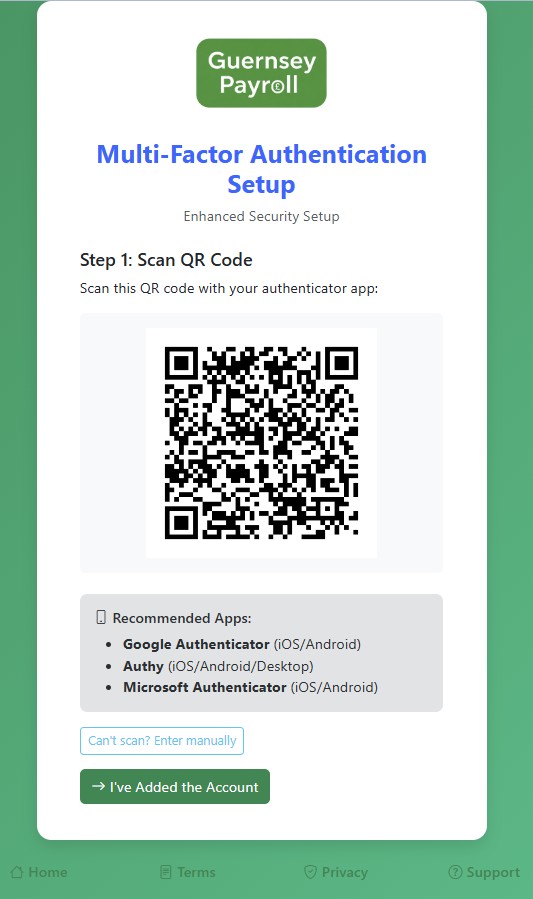
Enable MFA
Go to Settings → Security → Multi-Factor Authentication. Click "Enable MFA" to start the setup process.
Install Authenticator App
Download Google Authenticator, Microsoft Authenticator, or Authy on your mobile device. Scan the QR code displayed on screen.
Verify Setup
Enter the 6-digit code from your authenticator app to complete MFA setup. Save your backup codes in a secure location.
Configure Business Settings
Before processing any payroll, you need to configure your business information and payroll settings. This ensures accurate calculations and compliance.
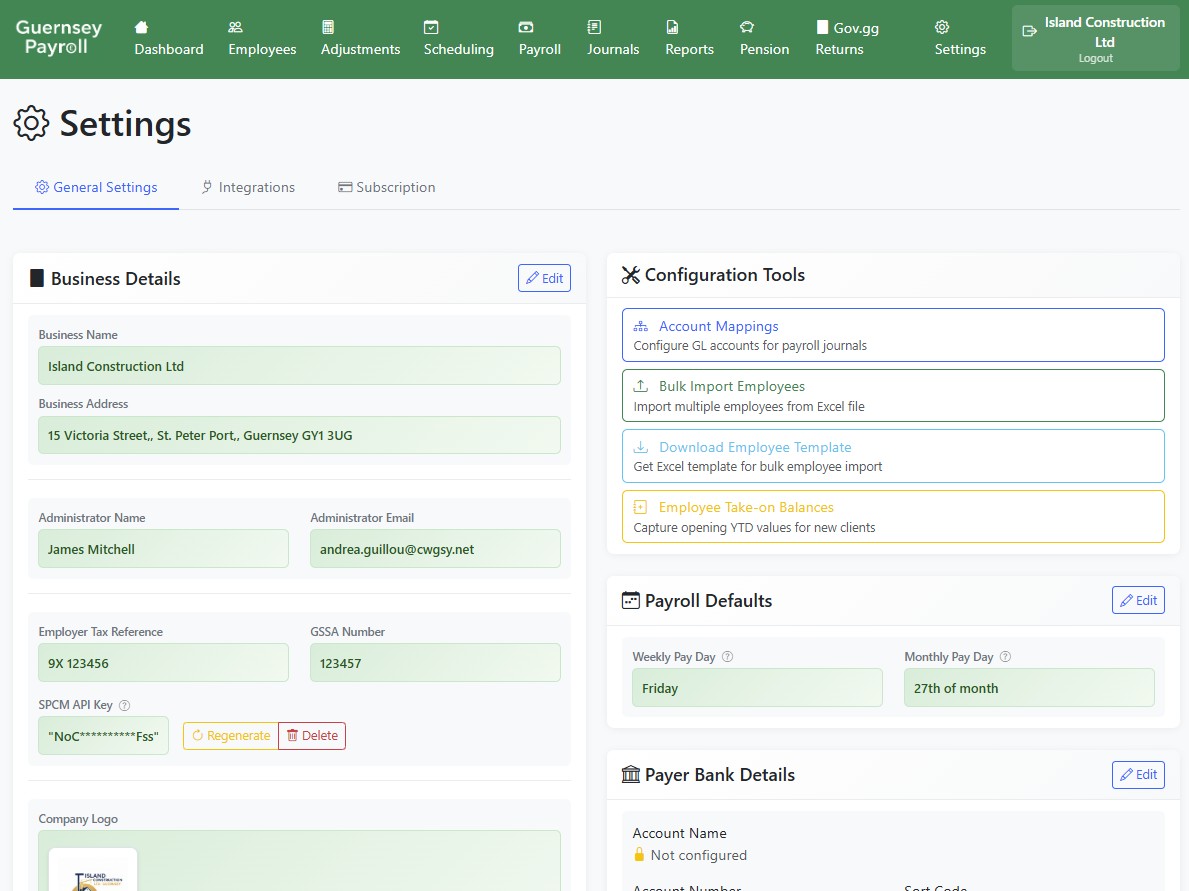
What you enter, and why it matters
Open Settings and complete the business details before you run payroll. These values identify your company on payslips, pension files and the quarterly returns sent to the Revenue Service and Social Security. You do not type in tax percentages or earnings limits — those are maintained for you, as described in the next section.
Business name and address
Printed on payslips and reports. If you upload a logo, you can choose to show it at the top of printed and emailed payslips.
Administrator name and email
The person responsible for payroll. This name and email are used as the sender contact when returns are submitted to gov.gg.
Employer Tax Reference
Your Revenue Service employer reference (for example 9X 123456). Quarterly income tax returns are filed against this reference. A missing or incorrect reference means the return is not matched to your employer account.
GSSA number
Your six-digit employer social security number. Social security contributions calculated on each pay run, and the quarterly social security return, are reported under this number.
Weekly and monthly pay
Set the default frequency, the usual pay day, and the first week or month you will process. You can run weekly and monthly payroll alongside each other. The calendar drives which earnings fall into each period, and therefore into tax, social security and pension calculations.
How tax and social security are paid
Choose whether income tax and social security are paid quarterly or with each pay run, separately for weekly and monthly payroll. This controls the payment files prepared for the States of Guernsey. The amounts themselves still come from the pay runs.
Add Your Employees
Now it's time to add your employees to the system. You can add them individually or import from a spreadsheet.
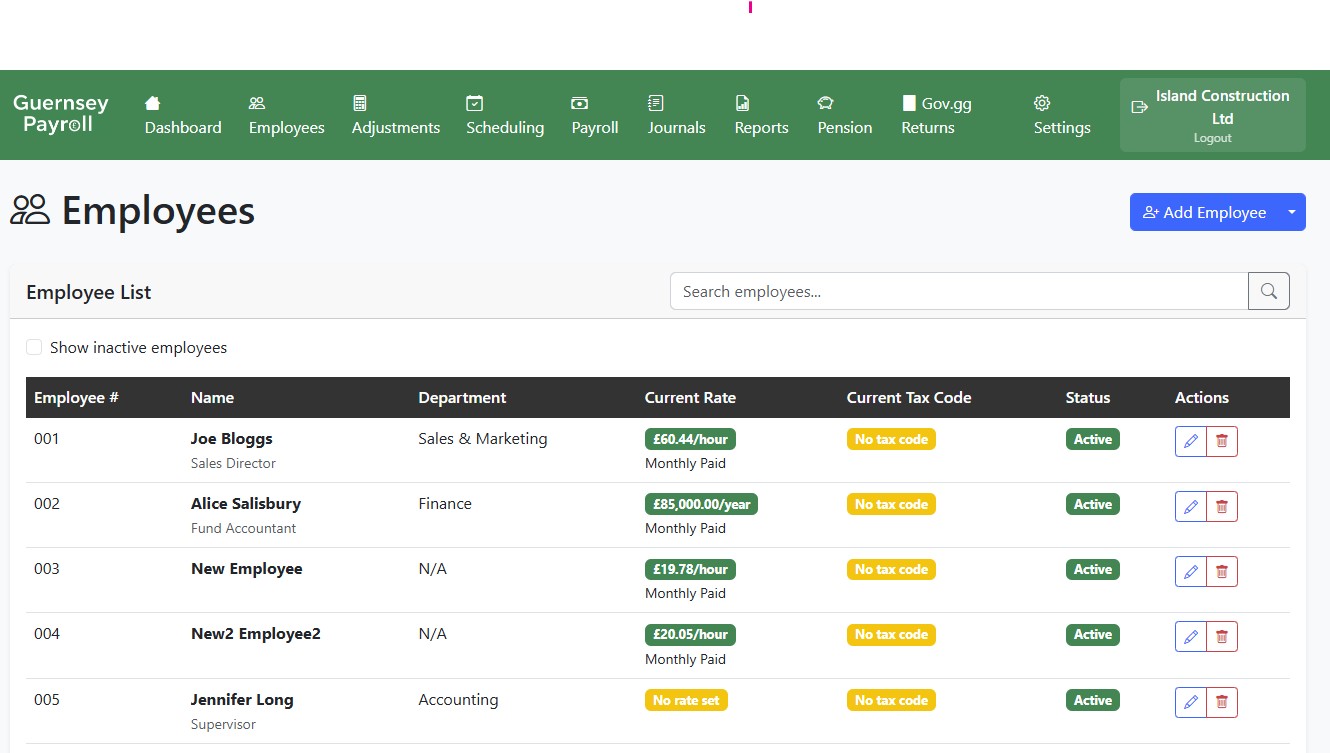
Adding Individual Employees
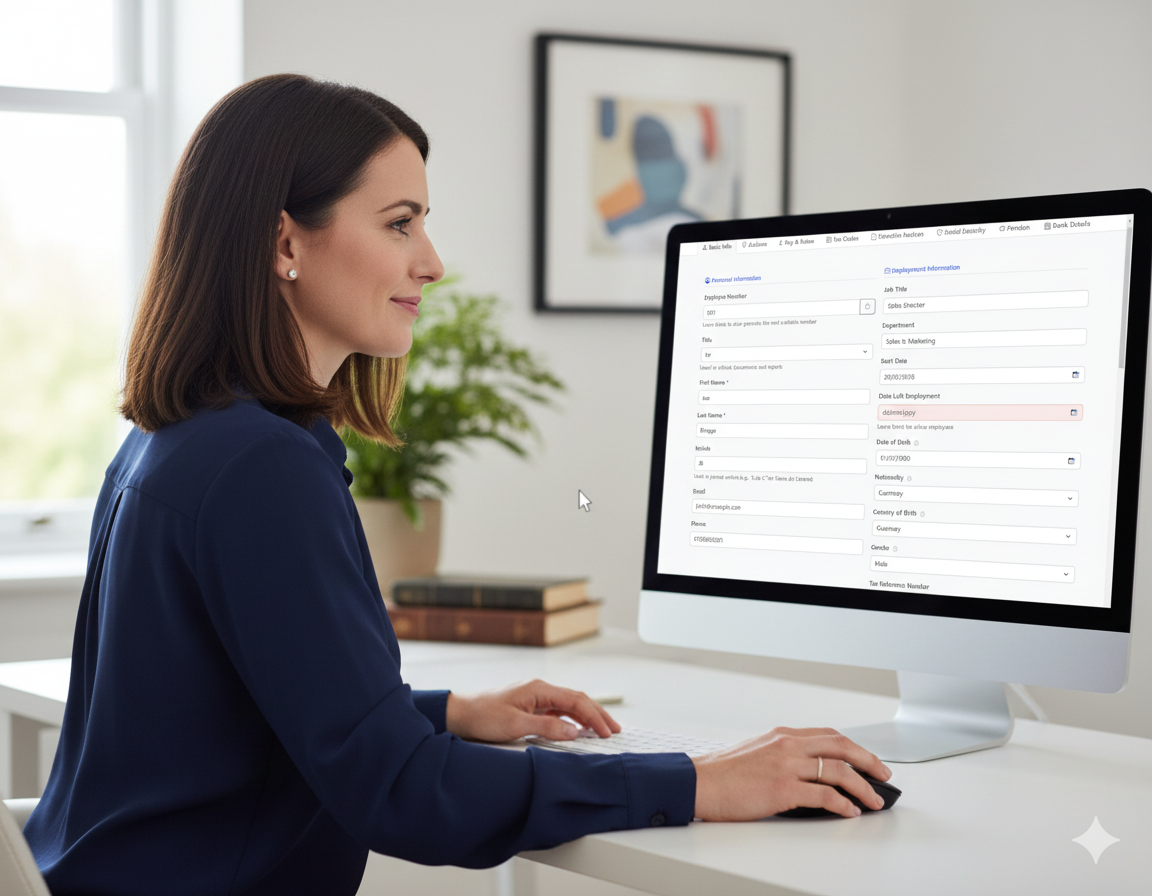
Navigate to Employees
Click "Employees" in the main navigation menu, then click "Add New Employee" to start adding your first employee.
Personal Information
Enter the employee's full name, date of birth, address, and contact details. All personal information is encrypted for security.
Employment Details
Set their employee number, start date, pay frequency, and hourly rate or salary. Set their tax code as notified by the Revenue Service.
Bank Details
Enter their bank account details for salary payments. This information is also encrypted and secure.
Rates and limits we maintain
Annual tax and social security figures, and the secondary pension minimums, are kept up to date by Guernsey Payroll. They are applied automatically when you calculate a pay run. You do not maintain a rate table of your own.
Income tax
The annual income tax rate used to calculate tax on each pay run, together with each employee’s tax code and any direction notice.
Social security rates
The employee and employer social security percentages for the year. Both sides of the contribution are calculated from these rates.
Upper and lower earnings limits
The weekly and monthly lower and upper earnings limits. Earnings below the lower limit, and earnings above the upper limit, are treated differently when social security is calculated.
Secondary pension percentages
The minimum employee and employer secondary pension percentages, including the rates already set for future years. When the statutory minimum steps up, pay runs in that year use the new percentage without you re-entering it.
Secondary pensions and BWCI
Once a pay run is finalised, pension contributions are ready to leave the system. How they leave depends on the scheme.
Uploads to secondary pensions
Contributions for schemes that accept a direct submission, including Sovereign YIP, can be prepared from the finalised pay run and uploaded without re-keying the figures. Employee membership and the amounts deducted are taken from the payroll you have already checked.
Files for BWCI
For BWCI, Guernsey Payroll creates the files you upload to BWCI yourself. That includes a new-member file when an employee joins the scheme, and the contribution file for the pay period. You review the file, then upload it on the BWCI site.
Payslips and the employee portal
Payslips are produced automatically from the finalised pay run. You do not build them in a separate document.
Print payslips when an employee needs a paper copy. The layout includes the pay, tax, social security and pension for that period.
Email the payslip to the employee as a PDF. The message goes to the address held on their record.
Employee portal
Employees can sign in at employee.guernseypayroll.com and collect their own payslips. Portal access depends on the access you allow for that employee.
Weekly and monthly payroll
Both weekly and monthly payroll are supported, including a mix of the two in the same company.
Each employee is paid on their own frequency. A weekly run uses the weekly calendar, limits and pay day. A monthly run uses the monthly ones. Tax, social security and pension are calculated for the period you are processing, and both frequencies feed the same quarterly returns.
Employee timesheets
Timesheets can be switched on for the company. Employees then enter their own hours; nothing is keyed twice.
Any device
Employees complete a timesheet on a mobile phone, tablet, laptop or desktop computer, through the employee portal.
Automatic upload
Submitted timesheets arrive in Guernsey Payroll on their own. There is no spreadsheet to import.
Review before pay
You review and approve the hours before they are used in the pay run. Unapproved time is not paid until you accept it.
Help, bureau service and security
Email support
Write to support@guernseypayroll.com if you would like help with setup, year-to-date balances, or the first pay run. We can arrange an onboarding session, remotely or in person.
Payroll bureau
If you would rather not run payroll yourself, Guernsey Payroll can provide a payroll bureau service. Tell us what you need and we will explain how that works for your company.
Security and backups
Payroll data is encrypted, the database is backed up regularly, and the service is checked for cyber security on a regular basis. Multi-factor authentication, described in the first section, is an extra control on your own sign-in.
You're All Set!
Congratulations on setting up Guernsey Payroll. You now have a complete payroll system that handles calculations, compliance, and reporting automatically.